
Hello, I'm Alex 😊
I am a blessed father of four currently serving as the Director of Technology at St. Joseph Catholic Church in Newton, NC. Knowing firsthand how busy parish life can be, I decided to create this guide in case there are other Catholic parishes in the US that could benefit from these incredible digital resources. I wanted to share the tools that have helped us streamline our mission in hopes they might be a blessing to your community, too ❤️
Putting this together is one of the small ways in which I choose to thank God for everything. I like to think of this guide as "mi granito de arena" (my little grain of sand) to help support & build the broader Catholic community.
Need a hand? Please know that if you hit a roadblock or have questions, feel free to reach out to me at tech@stjosephdoc.org. I will get back to you as soon as I can and try to help in whichever way possible.
What You Are Actually Getting
Did you know that you can get professional tools like Canva, Google Workspace, Monday.com, Microsoft 365 (Office Suite), and more—completely for free or deeply discounted? Many parishes spend hundreds or even thousands of dollars every year on these kind of tools without realizing they are entitled to a digital grant.
Why You Want These Tools:
-
Microsoft 365 (Office Suite) Yes, you can get Microsoft Office too! Microsoft offers a completely free "Business Basic" tier for nonprofits (which gives you web versions of Word, Excel, PowerPoint, and Teams). If your staff prefers the classic desktop apps installed directly on their computers, they offer the "Business Premium" tier at a massive discount—and often, the first 10 licenses are 100% free!
-
Canva Perfect for bulletin creation or making beautiful flyers. The best part is that it's fully collaborative, so everyone on the team gets real-time updates on changes made to any file. You can also include clickable links, embed videos, and even use interactive charts that highlight sections when hovered or clicked!
See what this looks like with our bulletin here -
Google Workspace Can be used to create professional parish emails, and you get a massive 100TB of shared cloud storage. Good luck running out of storage! 🤣 Plus, you get unlimited storage for Google Photos!
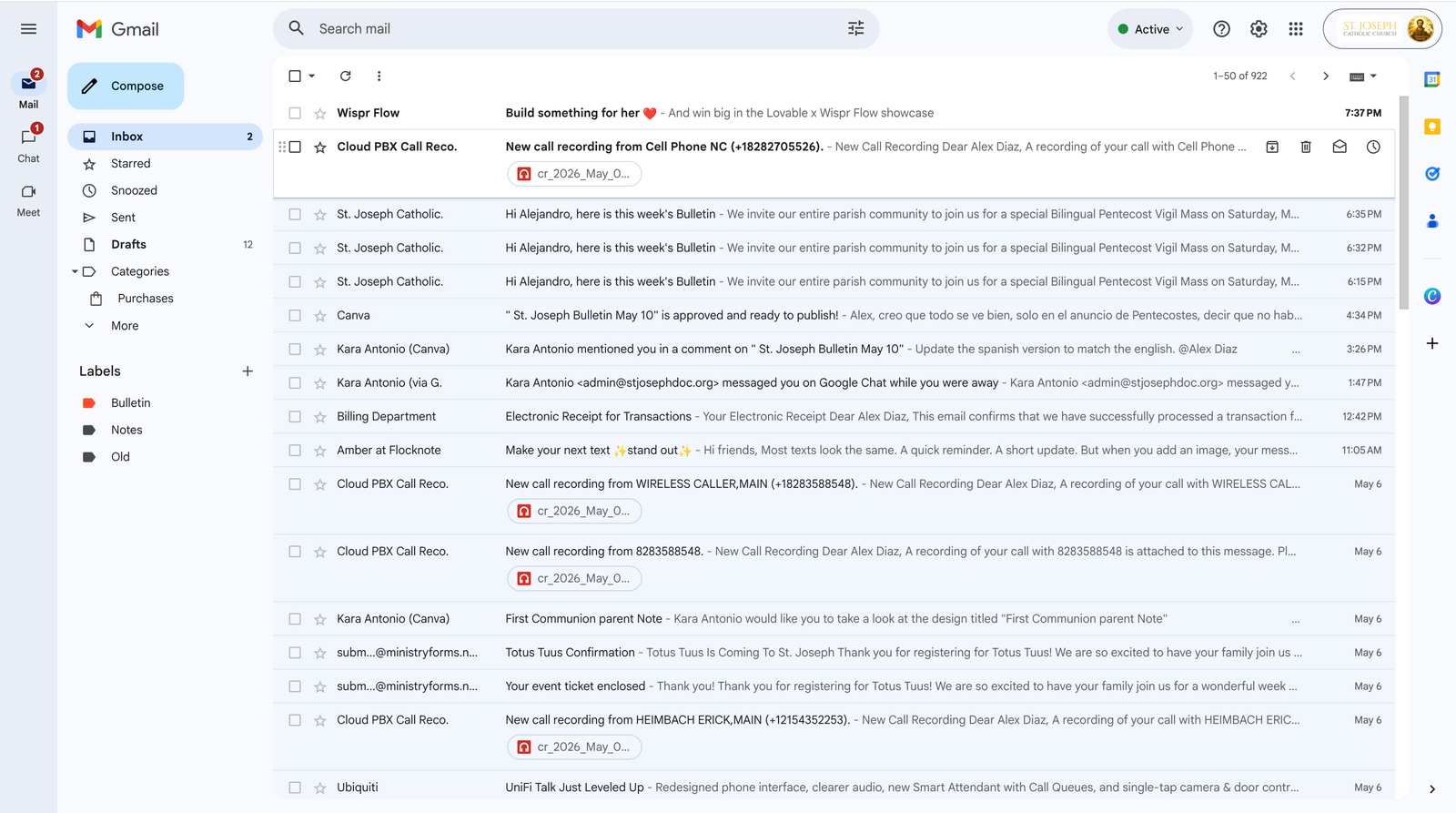
You also get access to Google Chat, a built-in messaging app that includes seamless video and voice calling right from your computer or phone. At St. Joseph, moving away from texting and WhatsApp to Google Chat has 100% improved our inner-office communication. It is a wonderful way to completely separate parish business from personal life. Getting your staff and ministry leaders to communicate through Chat ensures work conversations stay organized and don't intrude on personal family time!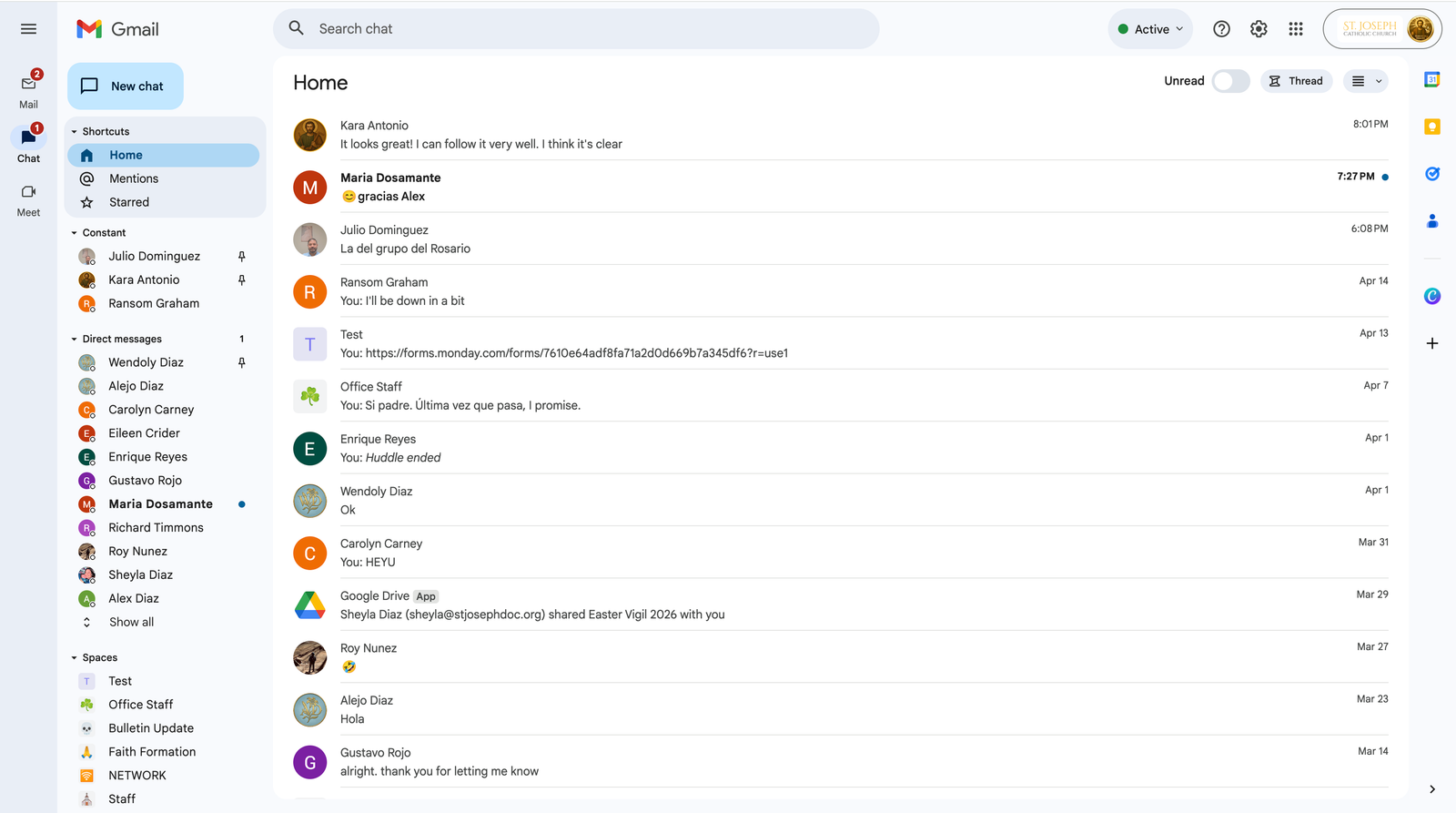
And let's not forget about Google Calendar! You can create multiple shared calendars for your facilities, ministries, and Mass times, and easily embed them right onto your parish website to keep your entire congregation in the loop.
Check out how we embed our calendar here -
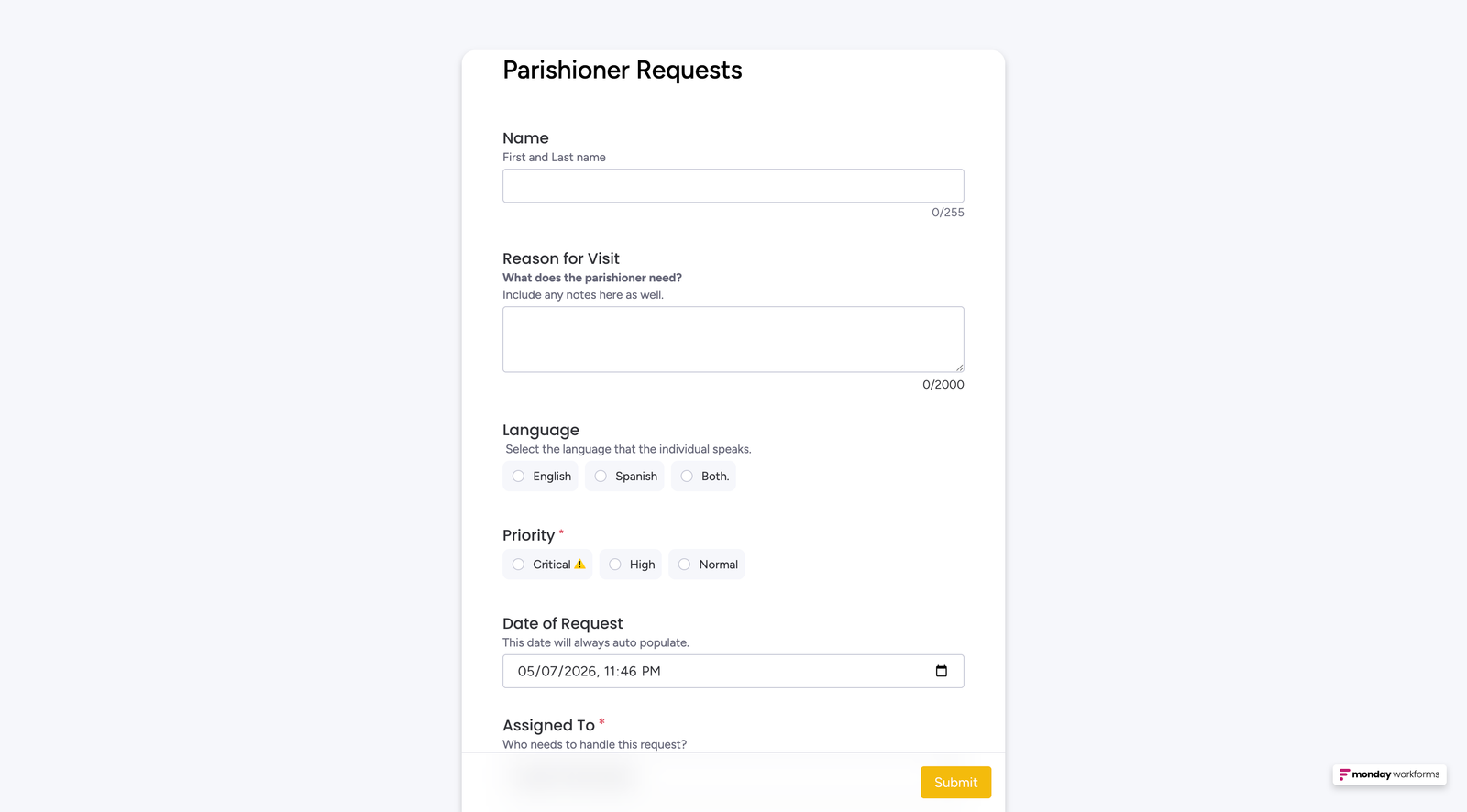
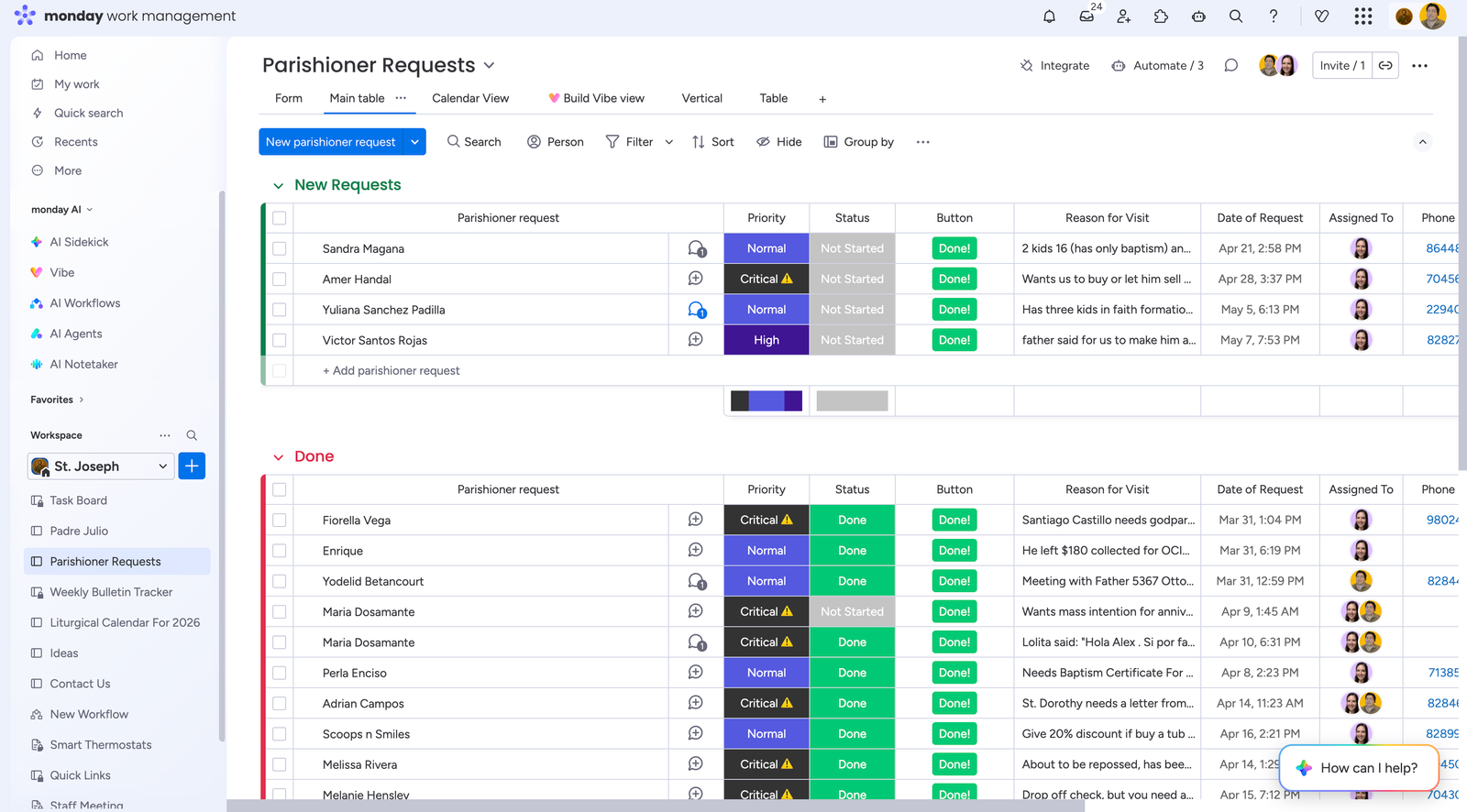
Monday.com An incredibly powerful tool we use to organize our tasks and incoming parishioner requests. This has truly helped us ensure that nobody's request ever gets ignored or forgotten. Think of it like a digital replacement for your office sticky notes. Sticky notes no more! (Well, occasionally... but definitely not as much!) It is also fantastic for task assignment, ensuring everyone on your team knows exactly what they are responsible for.
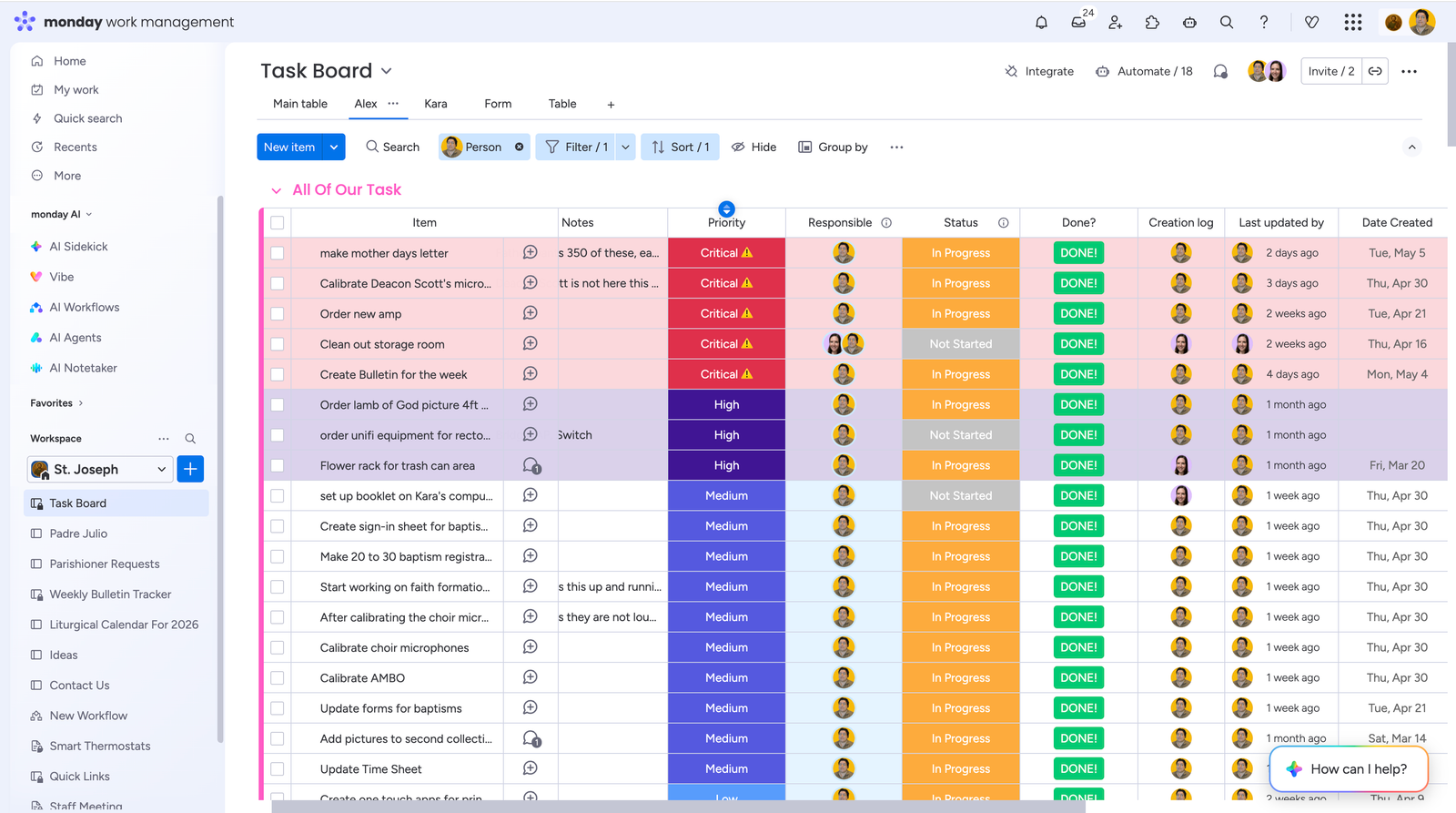
All you have to do is follow this guide. It does take some time, and it does take some work. However, if you implement these tools, you can potentially save your church hundreds of thousands of dollars.
A Quick Note on Eligibility:
The tools and software mentioned in this guide are just some of the resources I have personally used; it is not an exhaustive list of everything out there. Also, while this guide mentions Catholic churches under the USCCB group ruling, these grants are fundamentally for nonprofits. However, please keep in mind that your nonprofit must still meet specific program qualifications. For example, schools and educational institutions are often excluded from these specific nonprofit grants (though they usually have their own separate educational programs to apply for). As long as your church or organization is a verified, qualifying 501(c)(3) nonprofit, you can do this!
The Foundation (Do this before anything else)
To make sure the parish doesn't lose access to these free tools if you or a staff member leaves, you must build a "Succession" foundation right now.
-
1
The "Master Tech" Email:
Create a standard free Gmail account to use as the initial master key for these applications. Never use a personal email (like fatherjohn123@gmail.com). For example, at St. Joe's, I created a Gmail specifically called
stjosephstechnology@gmail.com. This email should be used strictly for critical infrastructure: website hosting, domain registration, and applying for the initial nonprofit grants only. Once you unlock your professional custom emails in Phase 2, you will use those instead! -
2
Shared Access:
Ensure multiple key people have access to this Master Tech email. For example, the Pastor should have access, but so should someone reliable in the office. At St. Joe's, Kara (our Office Manager) has access to it if she ever needs it.
-
3
Dual Admins & The Safe:
Later on, when setting up Google Workspace, Canva, and Monday.com, always make sure two people are assigned the "Owner" role. Finally, print out a sheet with the login for the Tech Email and your Domain Name (where you pay for the website) and lock it in the parish safe.
Prerequisites: What You Need Before Applying
Before we dive into creating accounts and claiming your digital grants, you must have a few critical pieces of infrastructure already in place. Tech companies use third-party verifiers (like TechSoup or Percent) who will look for these exact items to prove you are a legitimate, operating organization. If you don't have these yet, stop and get them sorted first!
A Custom Domain Name
You absolutely need to own a domain name (like stjosephdoc.org). You cannot get Google Workspace or Microsoft 365 without one. If your church is currently using a generic email or doesn't own a web address, you must purchase a domain name from a registrar (like Hostinger, GoDaddy, Namecheap, or Google Domains, etc.) first.
An Active Website
Grant reviewers will visit your domain name (url for website) to ensure it actually points to a functional website. It doesn't have to be a masterpiece, but it needs to be live, clearly state your church's mission, and list an address and contact information that perfectly matches your legal documentation.
Legal Documentation
You need digital copies (PDFs) of your nonprofit status ready to upload. This usually means your official IRS 501(c)(3) determination letter or IRS 147c letter.
Phase 1: The "Paperwork"
Before you can get free software, you must prove you are a nonprofit. Most companies will not accept just a letter from the Diocese; they want an official IRS document.
Step 1: Get the 147C Letter
- Action: Call the IRS at 1-800-829-4933.
- What to say: "I am an authorized representative for [Church Name]. We need an EIN Verification Letter (147C) for a nonprofit software application."
- The Shortcut: Ask the agent to "Fax it to me in real-time." If you have a digital fax or can stand by your office fax machine, you will have the document in minutes. Save this PDF immediately.
Step 2: Register with the "Gatekeepers"
Most tech companies use Goodstack or TechSoup to verify churches.
- Where to go: Visit Goodstack.org and TechSoup.org.
- What to click: Look for "Sign Up" or "Register Your Organization."
- What to do: Upload that 147C PDF you just got from the IRS. Once verified (usually 3–5 days), you will receive a Validation Token (a long code). Keep this code handy; it is your "key" to the rest of the steps.
TechSoup
Acts as the verification partner for Microsoft and Adobe.
- Create a free account using your Master Tech Email.
- Click "Add a New Organization" and enter your EIN.
- Upload your IRS 147C Letter.
- Wait for approval. Once approved, you can generate Validation Tokens from your account dashboard to use on other websites.
Goodstack
Handles the verification process for Google Workspace and Canva.
- Usually, you start the application directly on Google or Canva's nonprofit page.
- They will redirect you to Goodstack to create a profile.
- Enter your church details and upload your 147C Letter.
- They will email you as soon as your organization is verified and linked!
Phase 2: Email & Communication (Google Workspace)
This replaces @gmail.com addresses with professional ones like office@stjosephdoc.org.
- Where to go: google.com/nonprofits
- What to click: The blue "Get Started" button in the top right.
Literal Steps:
- Sign in with your new Master Tech Google account you created in The Foundation section.
- Enter your Parish Name and EIN into the organization search box that appears on the screen.
- The Redirect: Google will likely bounce you to their verification partner (Goodstack) to confirm your 501(c)(3) status. Complete their form and upload your 147C.
- Once verified by Goodstack, return to your Google for Nonprofits dashboard and click "Activate" under Google Workspace.
Benefits: You get 2,000 free email accounts, Google Chat (a private messaging area for staff, ministries, apostolates, or really anyone you deem necessary of having an email within your organization. It's wonderful for keeping parish communications separate from personal ones on your phone), and unlimited shared drives.
Note: You must still pay for your Domain Name (the yourchurch.org part), which is usually $12–$20/year.
Phase 3: Design & Bulletins (Canva Teams)
This is the only tool you need to make beautiful, modern bulletins.
- Where to go: canva.com/canva-for-nonprofits
- What to click: The "Apply now" button.
Literal Steps:
- Create a standard "Free" Canva account. Pro-tip: I highly recommend using your dedicated tech/admin email (like
tech@stjosephdoc.org) rather than the Master Tech email here, because as the administrator, manager, or director, you will be the one configuring the workspace and adding staff members. - While logged into that free account, go to the Canva for Nonprofits link above and click "Apply now." A short application form will pop up directly on the screen—enter your parish details (like your Name and EIN) right there.
- Canva will redirect you to their verification partner (Goodstack). Simply log in to link the verified status you set up in Phase 1, and it will instantly upgrade your account to Canva Teams for free!
The Result: You get Canva Teams (free for 50 people). You can design the bulletin and click "Share" to get a "view-only" link to post on your website for a digital version.
Phase 4: Document Printing (Adobe Acrobat Pro)
Essential for creating fillable forms and ensuring bulletins print correctly on office machines.
- Where to go: adobe.com/nonprofits/acrobat.html
- What to click: "Apply now" or the $15/year offer link.
Literal Steps:
- Log into your TechSoup account (from Phase 1) using your Master Tech email and generate a Validation Token (it looks like a long string of letters and numbers).
- Go to the Adobe Nonprofit link above and click "Apply now" for the discounted Acrobat Pro plan. Pro-tip: Ensure you create this Adobe account using a dedicated parish email (like
office@stjosephdoc.org), not your Master Tech email. - When prompted during the Adobe checkout or application, paste your TechSoup Validation Token to prove you are a verified nonprofit.
- Finish the checkout process to secure the deeply discounted rate!
Phase 5: Task Management (Monday.com)
This is how you can organize your staff, maintenance requests, task, or parishoner request.
- Where to go: monday.com/nonprofits
- What to click: "Apply for the nonprofit plan."
Literal Application Steps:
- Sign up for a standard free trial at Monday.com. Pro-tip: Be sure to use your new professional parish email (like
office@stjosephdoc.orgortech@stjosephdoc.org) rather than the Master Tech email, as this will be your team's daily workspace. - While logged in, go to the
monday.com/nonprofitslink and click "Apply for the nonprofit plan." - Fill out their specific application form. They will usually ask you to upload your 147C Letter directly to the form.
- Once approved, your trial account will automatically be upgraded to the free nonprofit tier!
How to set up the Parishioner Form:
- Create a "New Board" and name it "Parishioner Requests."
- Add columns for "Name," "Phone," "Email," and "Request Description."
- At the top of the board, click the "+" sign and select "Form."
- Click "Share Form" to get a link. Paste this link on your parish website.
The Result: When someone fills it out, it instantly pops up on your staff's computer screen as a new task.
Phase 6: Free Marketing ($10,000/mo Google Ad Grant)
- Where to go: Back to your Google for Nonprofits dashboard.
- What to click: Look for "Google Ad Grants" and click "Activate."
Literal Steps:
- Prerequisite: You must have your Google for Nonprofits account fully verified and approved first (from Phase 2).
- Log back into your Google for Nonprofits dashboard.
- Look for the "Google Ad Grants" section and click "Activate."
- Complete the eligibility assessment form to ensure your church qualifies.
- Follow the prompts to create your Ad Grants workspace. Important: You will never put a credit card in; Google will simply give you a $10,000 monthly grant balance to show your ads to local people searching for Mass times or community help.
Phase 7: The "Connected Parish" (Integration)
The true power of these tools is how they work together as one single system. Instead of checking five different websites, you can link them so information flows automatically.
1. Canva + Google Drive
The Connection: In Canva, go to Apps and search for Google Drive.
The Benefit: When you finish a bulletin or a flyer, you can save it directly to the Parish Google Drive with one click. This ensures the Office Manager, the Pastor, and the Secretary all have the final version immediately without emailing files back and forth.
2. Monday.com + Gmail
The Connection: On your Monday board, click the Integrate button and select Gmail.
The Benefit: You can set a rule: "When an email is sent to office@stjoseph.org, create a new task on the Requests Board." This ensures no email ever gets "lost" in an inbox—it becomes a visible task that someone must check off.
3. Adobe Acrobat + Google Drive
The Connection: Within the Adobe Acrobat app, select Add Account and choose Google Drive.
The Benefit: You can open, edit, and sign PDFs directly from your Google Drive without downloading them to your computer. When you save, the updated file is already back in the cloud for the rest of the staff to see.
4. Google Ad Grants + Monday.com
The Connection: Use a tool like Zapier (also discounted for nonprofits) to link your Google Ads to a Monday.com board.
The Benefit: When a new person finds the church via a Google Ad and fills out a "Contact Us" form, their information can pop up directly on a Monday.com board for the "Welcome Committee" to follow up.
Total Annual Savings for the Parish
- Google Workspace $14,000 (Value)
- Monday.com $3,000 (Value)
- Canva Teams $500 (Value)
- Google Ad Grants $120,000 (In-kind)
- Adobe Acrobat Pro $225 (Discounted)
- TOTAL SAVED PER YEAR: $137,725
Building the Kingdom, Together
At the end of the day, technology is simply a tool—but when leveraged effectively, it becomes a powerful bridge. By saving your parish thousands of dollars and streamlining your daily operations, you are freeing up invaluable time and resources to focus on what truly matters: ministering to your flock.
My deepest hope is that this guide empowers your parish team to reach further, communicate more clearly, and connect more deeply with your community. As a servant of Christ, my ultimate desire is simply to be His instrument—helping to provide the structural support you need to bring all of our brothers and sisters home, right where they belong.
May God abundantly bless your parish, your ministry, and the incredible work you do every single day.